


If you are using the Minimal theme and want to add tabs to your product pages, I'll show you exactly how in this tutorial. A few months ago, I published a tutorial on how to add tabs to your product pages in Shopify, and I've had a number of people comment on that post saying that they were having problems adding the tabs to the Minimal theme. After doing some research, I found that the Minimal theme already has the support for tabs built in, so in this tutorial I'll show you how to take advantage of that feature in Minimal and add tabs to your own product pages.
If you're not using the Minimal theme, head over to this page for a tutorial on how to add tabs to other Shopify themes.
Warning: If you already tried my other tutorial for adding tabs to product pages, and are now trying to get the tabs working in the Minimal theme, make sure to delete any code that you added from that tutorial.
Step 1: Open the product editor in your Shopify Dashboard
After opening up the product you want to edit, click the "View HTML" button over the top right corner of the text area. 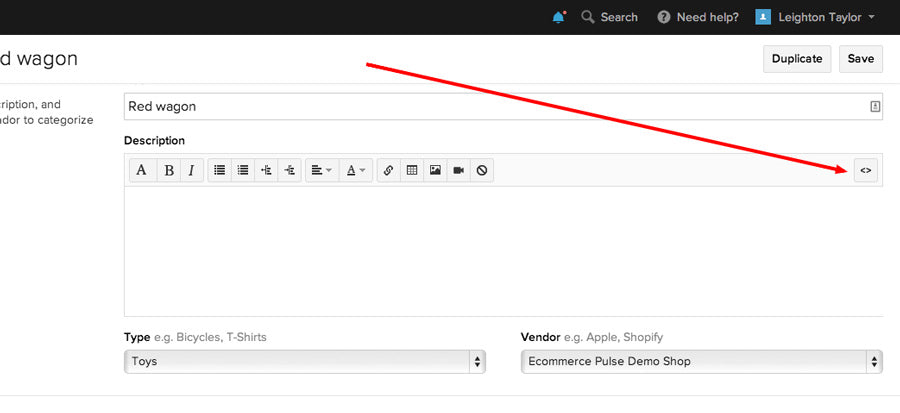
Step 2: Paste this code into the product description
[code]
<ul class="tabs">
<li><a class="active" href="#tab1">Tab 1</a></li>
<li><a href="#tab2">Tab 2</a></li>
<li><a href="#tab3">Tab 3</a></li>
</ul>
<ul class="tabs-content">
<li class="active" id="tab1">
<p>Tab 1 content goes here.</p>
</li>
<li id="tab2">
<p>Tab 2 content goes here.</p>
</li>
<li id="tab3">
<p>Tab 3 content goes here.</p>
</li>
</ul>
[/code]
Your product should now look something like this: 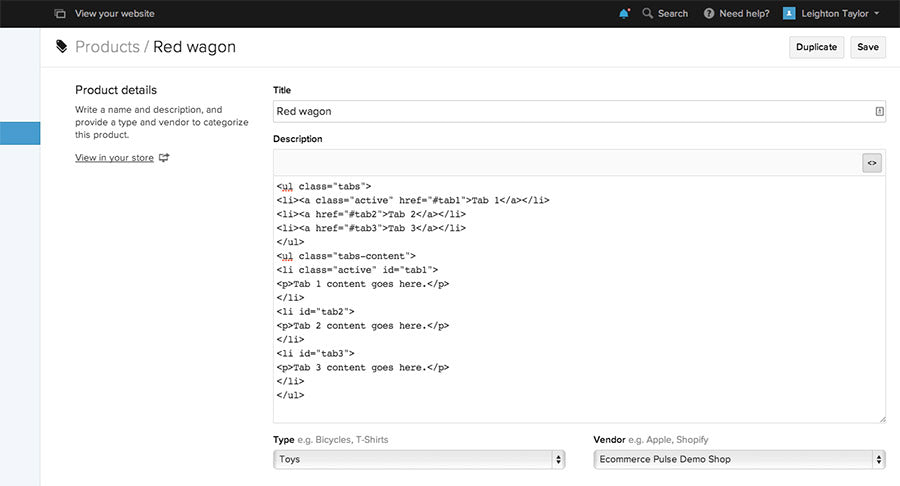
Step 3: Edit the labels and content for each tab
I highly recommend editing the labels and content from within the HTML editor, rather than using the visual editor. This is because the visual editor tends to mess up the HTML code that you pasted in.
Step 4: Save
Click "Update" or "Save" to save the changes you made to the product. Then go ahead and view the product on your website to make sure the tabs are showing up properly.
I hope that went smoothly for you! If you had any problems, please leave a comment below with a description of the problem and I'll do my best to help.

Comments (39)