


If you are using the Minimal theme and want to add tabs to your product pages, I'll show you exactly how in this tutorial. A few months ago, I published a tutorial on how to add tabs to your product pages in Shopify, and I've had a number of people comment on that post saying that they were having problems adding the tabs to the Minimal theme. After doing some research, I found that the Minimal theme already has the support for tabs built in, so in this tutorial I'll show you how to take advantage of that feature in Minimal and add tabs to your own product pages.
If you're not using the Minimal theme, head over to this page for a tutorial on how to add tabs to other Shopify themes.
Warning: If you already tried my other tutorial for adding tabs to product pages, and are now trying to get the tabs working in the Minimal theme, make sure to delete any code that you added from that tutorial.
Step 1: Open the product editor in your Shopify Dashboard
After opening up the product you want to edit, click the "View HTML" button over the top right corner of the text area. 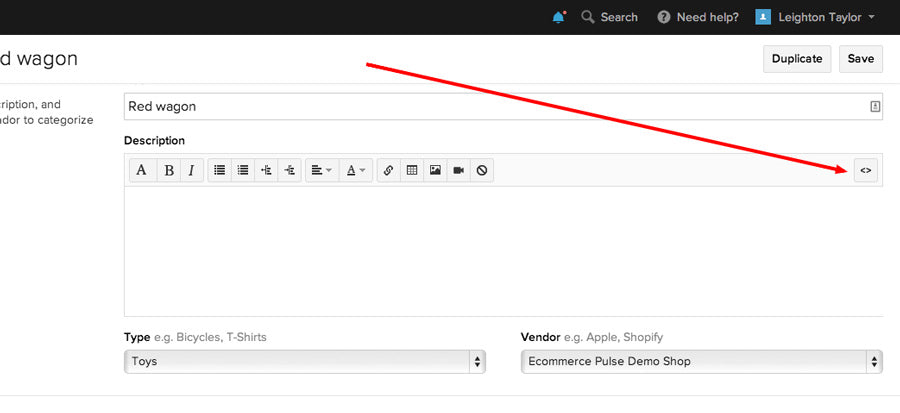
Step 2: Paste this code into the product description
[code]
<ul class="tabs">
<li><a class="active" href="#tab1">Tab 1</a></li>
<li><a href="#tab2">Tab 2</a></li>
<li><a href="#tab3">Tab 3</a></li>
</ul>
<ul class="tabs-content">
<li class="active" id="tab1">
<p>Tab 1 content goes here.</p>
</li>
<li id="tab2">
<p>Tab 2 content goes here.</p>
</li>
<li id="tab3">
<p>Tab 3 content goes here.</p>
</li>
</ul>
[/code]
Your product should now look something like this: 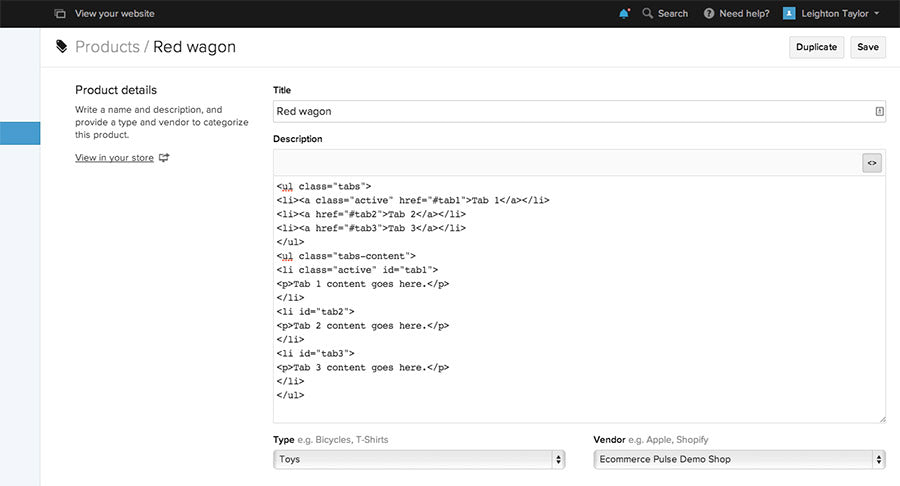
Step 3: Edit the labels and content for each tab
I highly recommend editing the labels and content from within the HTML editor, rather than using the visual editor. This is because the visual editor tends to mess up the HTML code that you pasted in.
Step 4: Save
Click "Update" or "Save" to save the changes you made to the product. Then go ahead and view the product on your website to make sure the tabs are showing up properly.
I hope that went smoothly for you! If you had any problems, please leave a comment below with a description of the problem and I'll do my best to help.

Comments (39)
Leighton,
I finally took the plunge and I’m building my shopify store selling cut throat razors and accessories. Hope to be launching soon by the way super helpful post about tabs on the minimal theme but I’m using the simple theme for my store front.
Just a quick question if you are drop shipping should I enter the suppliers details into the invoice section because shopify asks for my address and this is printed on each invoice generated for customers. As I was thinking of using my home address as administrative office addresses.
Leighton,
I finally took the plunge and I’m building my shopify store selling cut throat razors and accessories. Hope to be launching soon by the way super helpful post about tabs on the minimal theme but I’m using the simple theme for my store front.
Just a quick question if you are drop shipping should I enter the suppliers details into the invoice section because shopify asks for my address and this is printed on each invoice generated for customers. As I was thinking of using my home address as administrative office addresses.
Hi Leighton!
Thanks so much for this update on the Minimal theme. I now have my tabs on my product page but I’m not sure why they are not working. The tabs stay on the first tab and wont change when you click on the 2nd and 3rd tabs. Hopefully there is any easy solution to this. I appreciate any advice you can give.
Melissa
Hi Melissa,
I installed this on the Minimal theme on my own shop, and had the same problem you are describing. However, when I installed a fresh copy of Minimal from the Shopify theme store, it worked. I’m not sure if that’s due to a theme update, or due to problems left over from trying the original tab tutorial, but hopefully that helps. I know that could be a pain if you have made other customizations to your theme.
Thanks so much for your quick reply! I will give that a try. I’m in the very beginning steps of customizing so that won’t be a problem. Thanks for all your help!
Melissa
You’re very welcome! Good luck. :)
Hi Mitesh,
If you’re not using the Minimal theme, you can use this tutorial to add tabs to your product pages.
I have my own address in my Shopify account, but that address is not sent out to my customers. You can customize the email sent to your customers, so you don’t have to include your address. I didn’t think the address was automatically included in that email, actually, but I could be wrong. Are you using some kind of app that sends an invoice other than Shopify’s default system?
When my dropshipper sends products to my customers, they put their own address on the packing slip, so that if the customer needs to return the item there is no confusion and they know to ship it back to the dropshipper.
I hope that answers your question—if not, please let me know. :)
Thank you so much for this, it worked perfectly for me! However, I’m wondering how to make this work if you don’t want to duplicate your content on every product page. My site’s still in development, and I know if I add, say, a shipping tab to my product pages now, I’ll want to make changes to it sitewide about a million times. How do you use snippets in tabs, so that changes all happen in one place, rather than on every page? Such as with this Shopify tutorial you reference in another one of your posts:
http://docs.shopify.com/support/your-store/products/how-do-i-add-tabs-to-product-descriptions
Do I have to go the long way about and do it this way? Please help! I can’t seem to figure this out. Thank you so much!
Hi Karen,
Glad it worked for you! Unfortunately, Shopify doesn’t let you use Liquid in product descriptions, so you can’t use snippets. Your best bet is probably to just go through and copy/paste the shipping information into every product when it’s finalized. You could use that other Shopify tutorial you linked to, but then you lose the ability to have more than one unique tab on each product page. I wish Shopify had a better way to manage tabs! :)
Great example but I would like to add five tabs instead of three?